

Before You Begin
Before you start the software configuration, please ensure you have completed the following:- You have an Android mobile phone with the latest DJI Enterprise app installed. You can download this from the DJI website.
- The dock is powered on and has a stable internet connection (Ethernet is strongly recommended).
- You have your AlphaSight DJI credentials ready. These are either provided by your AlphaSight administrator or generated within your own organization’s settings.
Connecting the Dock to AlphaSight
1
Connect Phone to Dock
Unlock and open the DJI Dock 3’s electrical cabinet, locate the USB-C port. Using a USB-C cable, connect your mobile phone directly to this port. Plugging in phone to Dock 3 via USB-C cable may cause the phone to auto-open DJI Enterprise app. Otherwise, open the DJI Enterprise app on your phone.
2
Open Dock Cover
Once the app detects the dock, it will show a various Dock telemetry and connection status. Before proceeding further, manually open the dock cover using the “Open Cover” button in the app. To do this, tap on th settings icon at the bottom right corner then tap on Open Dock Cover.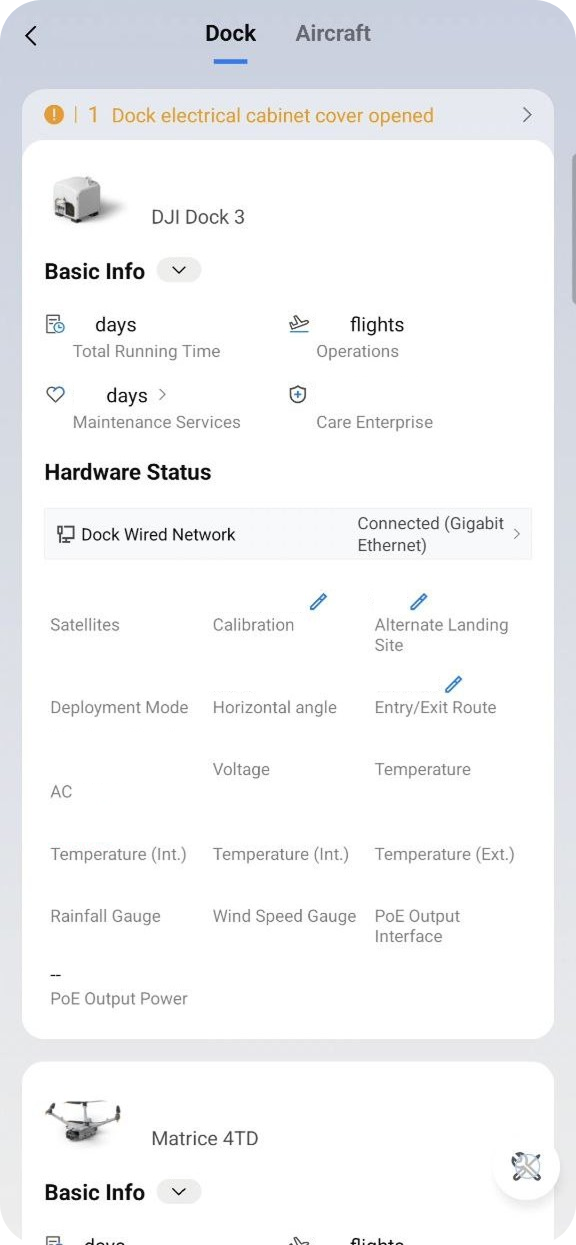
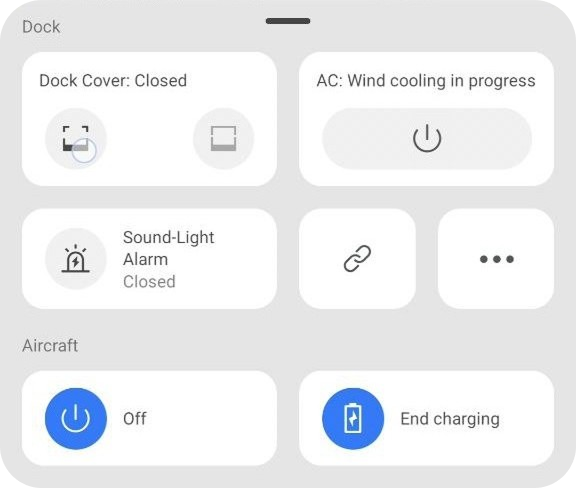
3
Begin Deployment Readiness
In the app, tap on the settings icon at bottom right. Then find and begin the on-site “Dock Deployment” or “Configuration” wizard. This will guide you through the complete setup process. With the settings bottom panel open, tap on triple dot icon. Then select redeploy. Use Fixed-Mounted Deployment. Follow the onscreen prompts up to Cloud Service Configuration.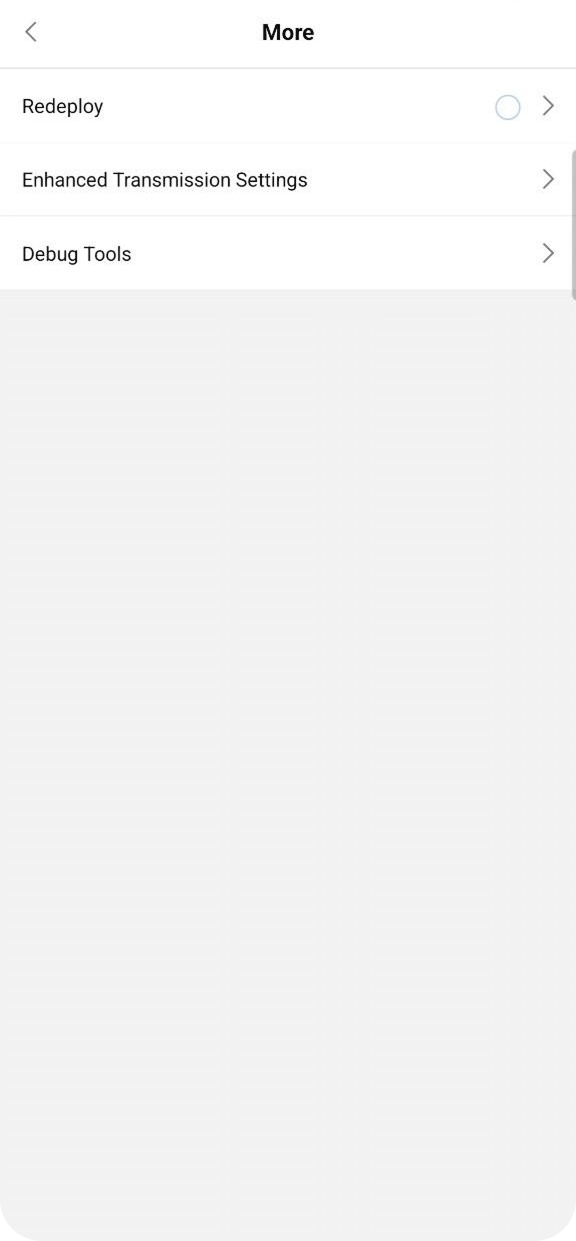
4
Cloud Service Configuration.
Eventually, you will reach the “Cloud Service Configuration” page. The default selection is “DJI FlightHub 2”.Tap the dropdown menu and select “Third-Party Cloud Service”.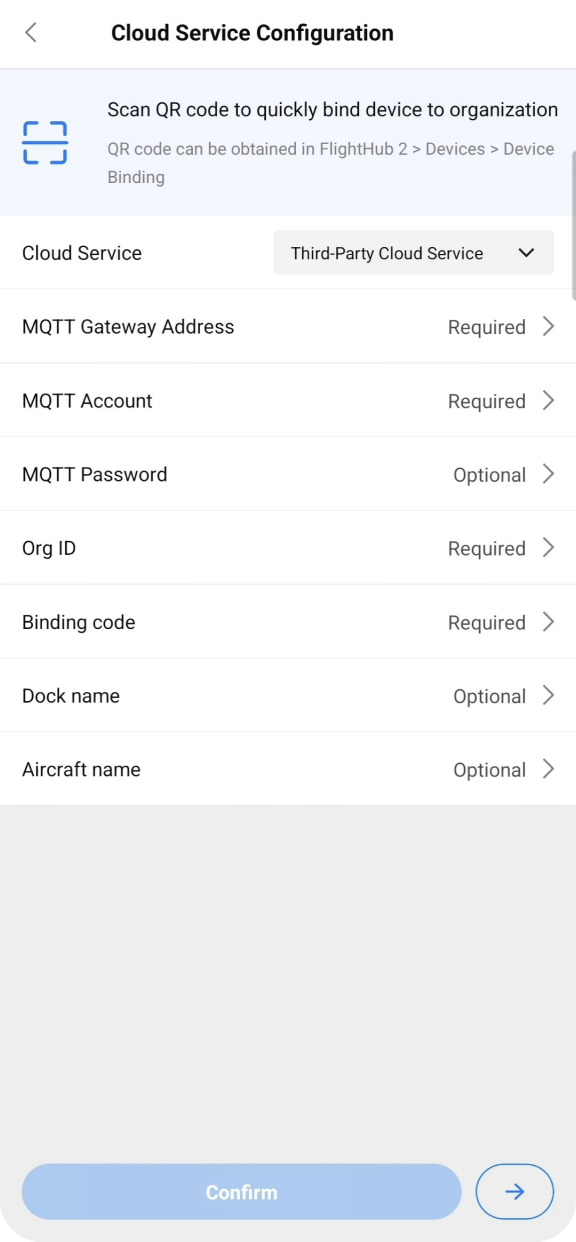
5
Enter AlphaSight Credentials
A new form will appear. This is where you will enter the credentials for the AlphaSight platform.Fill in each field precisely as provided:
- MQTT Gateway Address: Your AlphaSight MQTT broker address
- MQTT Account: Your MQTT username
- MQTT Password: Your MQTT password
- Binding code: The unique binding code for this device
- Org ID: Your organization name (in plain text) After filling in all the fields, tap “Confirm”. The DJI Enterprise app will attempt to login to the AlphaSight platform.
6
Connect drone to dock
Complete the remainder of on-screen prompts until Configuration Completed. To connect drone to dock,Press then press & hold to turn drone on.Once on, Press and hold to turn on connection mode.In the DJI Enterprise app, check for successful confirmation.
7
Close the Dock
Important: Before you disconnect your phone, navigate back to the dock controls in the app and use the “Close Cover” button. Wait to confirm the dock is securely closed.