> ## Documentation Index
> Fetch the complete documentation index at: https://docs.alphasight.app/llms.txt
> Use this file to discover all available pages before exploring further.
# Viewing your data
> Learn how to navigate your sites and access your files.
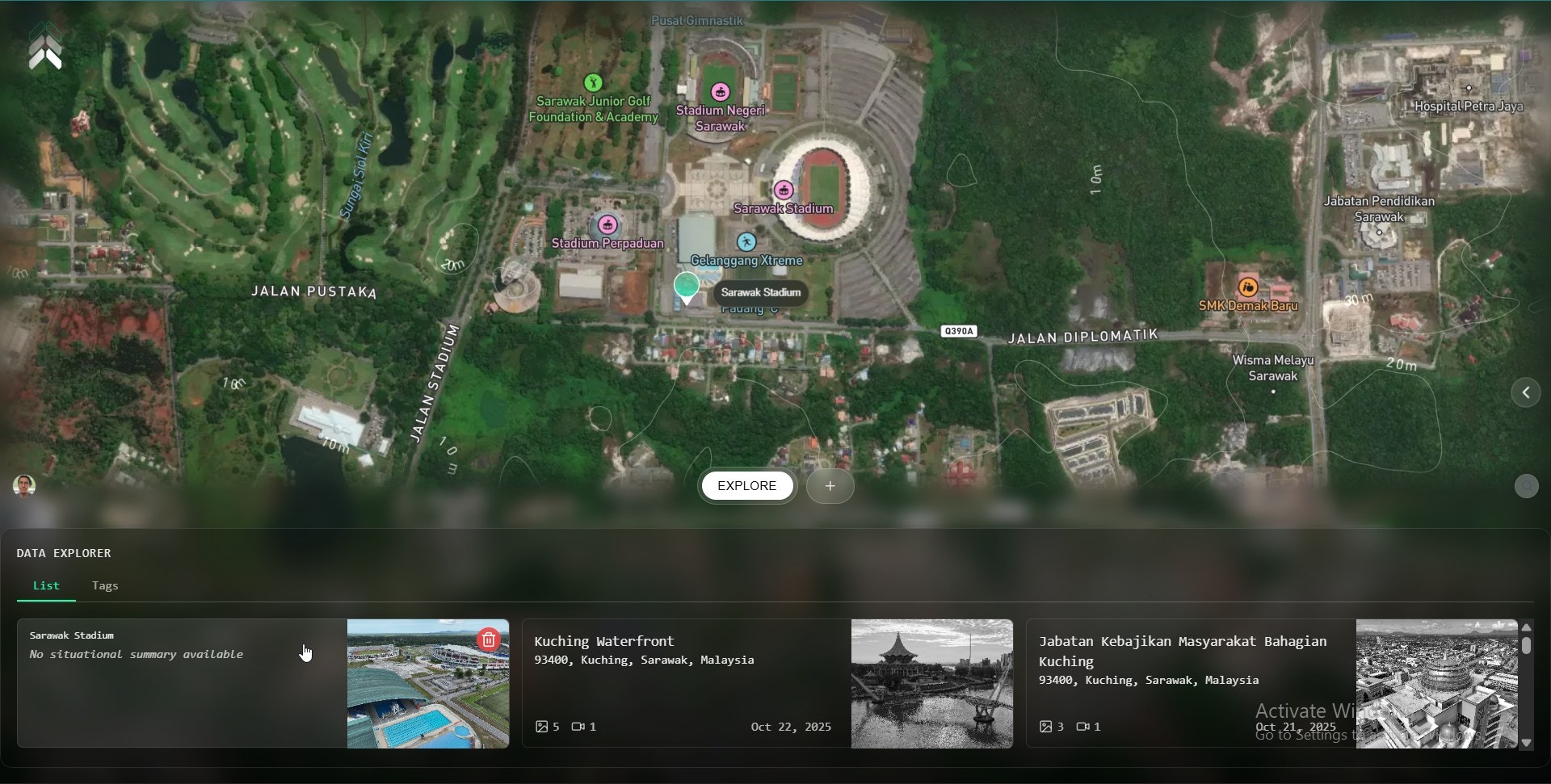
Homescreen shows a map alongside a list of all your **AOIs** (Areas of Interest, or Sites), giving you a quick, high-level overview of all your locations.
### Accessing Site Data
From the homescreen, you can dive into any AOI to see its specific data.
From the homescreen list or map, simply click on an AOI. This will open the AOI's dedicated dashboard, where you can access all of its associated images, videos, maps, and other files.
 Once you've selected one or more files, click the **Download** button at top right of data. The files will be saved to your device for offline access.
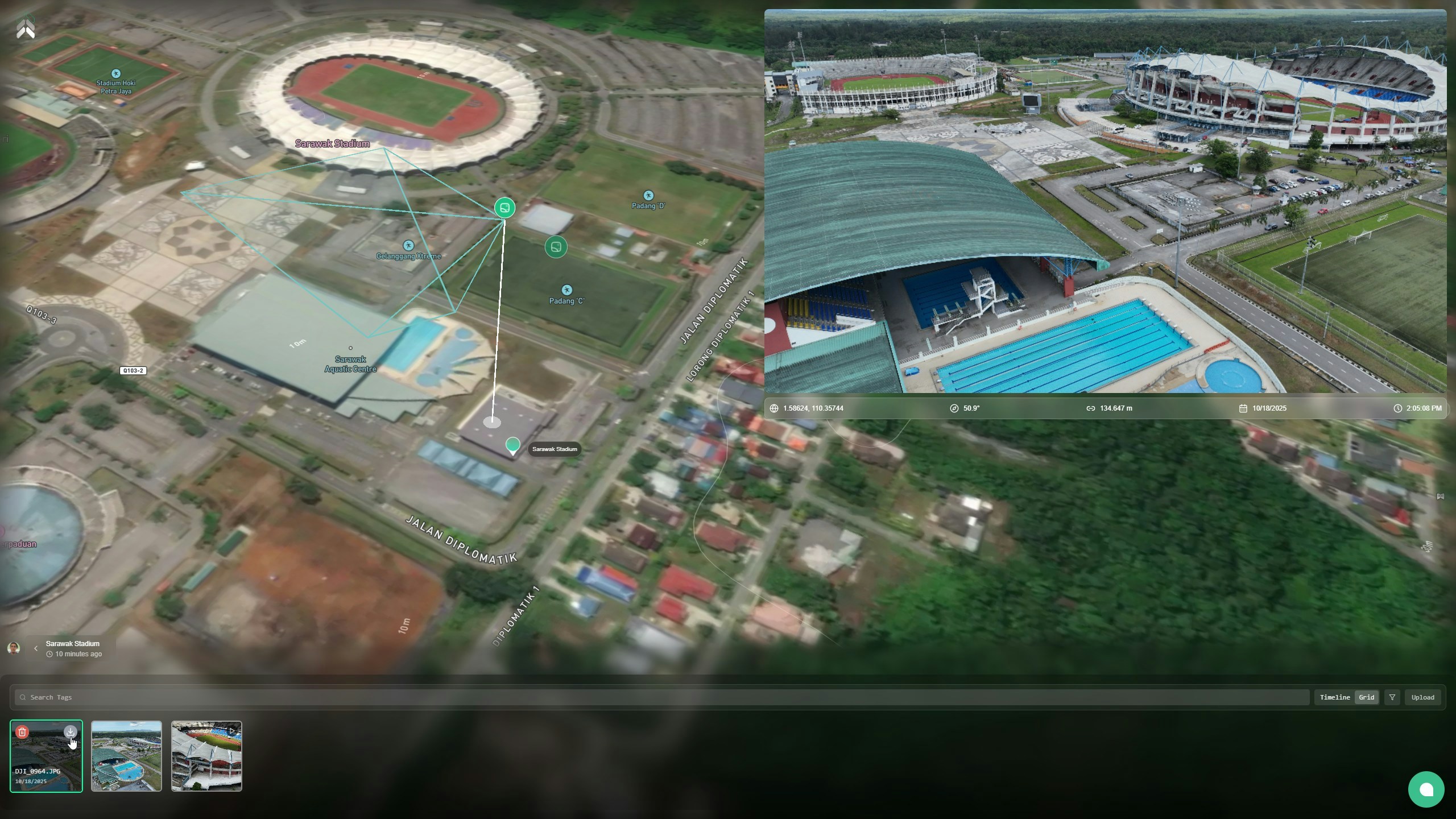 **Pro Tip:** To select multiple files for download at once, hold the **Shift** key and click on each file you need. This allows you to batch-download everything in one go.