> ## Documentation Index
> Fetch the complete documentation index at: https://docs.alphasight.app/llms.txt
> Use this file to discover all available pages before exploring further.
# Connect to DJI Dock 2
> Follow these steps to configure your DJI Dock 2 to communicate with the AlphaSight platform using the DJI RC Plus Enterprise.
The DJI Dock 2 requires the use of the **DJI RC Plus Enterprise remote controller** to establish a connection to a third-party cloud service like AlphaSight. This process uses the DJI Pilot 2 app running on the remote controller.
### Before You Begin
Before you start the software configuration, please ensure you have completed the following:
* The **DJI RC Plus Enterprise** remote controller is fully charged and has the latest firmware and **DJI Pilot 2** app installed.
* The dock is **powered on** and has a **stable internet connection**
* You have your **AlphaSight DJI credentials** ready. These are either provided by your AlphaSight administrator or generated within your own organization's settings.
### Connecting the Dock to AlphaSight
Turn on the controller. Within DJI Pilot 2, switch devices to **Matrice 3D series**.
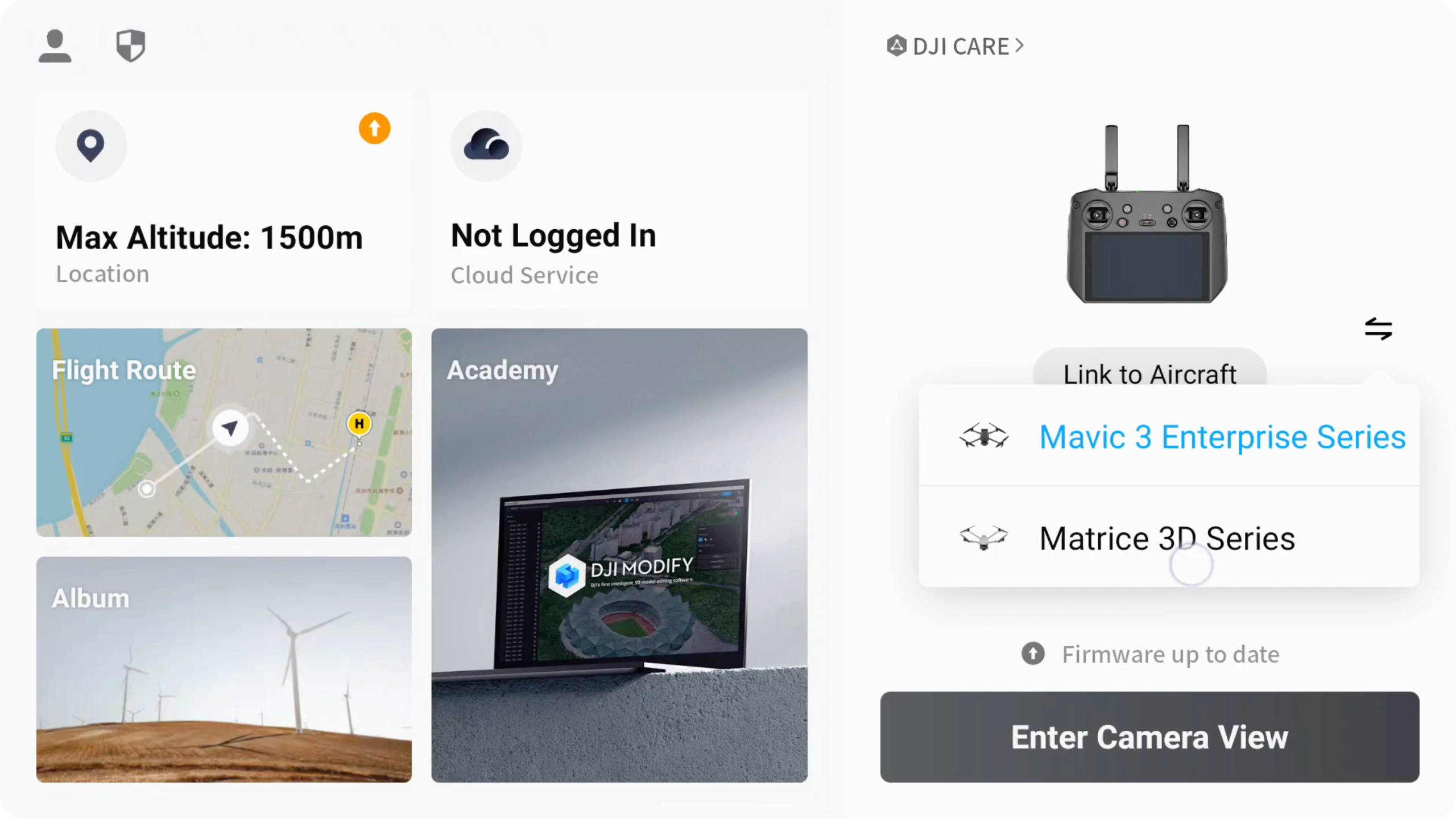 Locate the **USB-C port** inside the Dock 2's electrical cabinet. Use a USB-C cable to connect the **DJI RC Plus Enterprise** to this port. The remote controller should automatically launch the DJI Pilot 2 application.
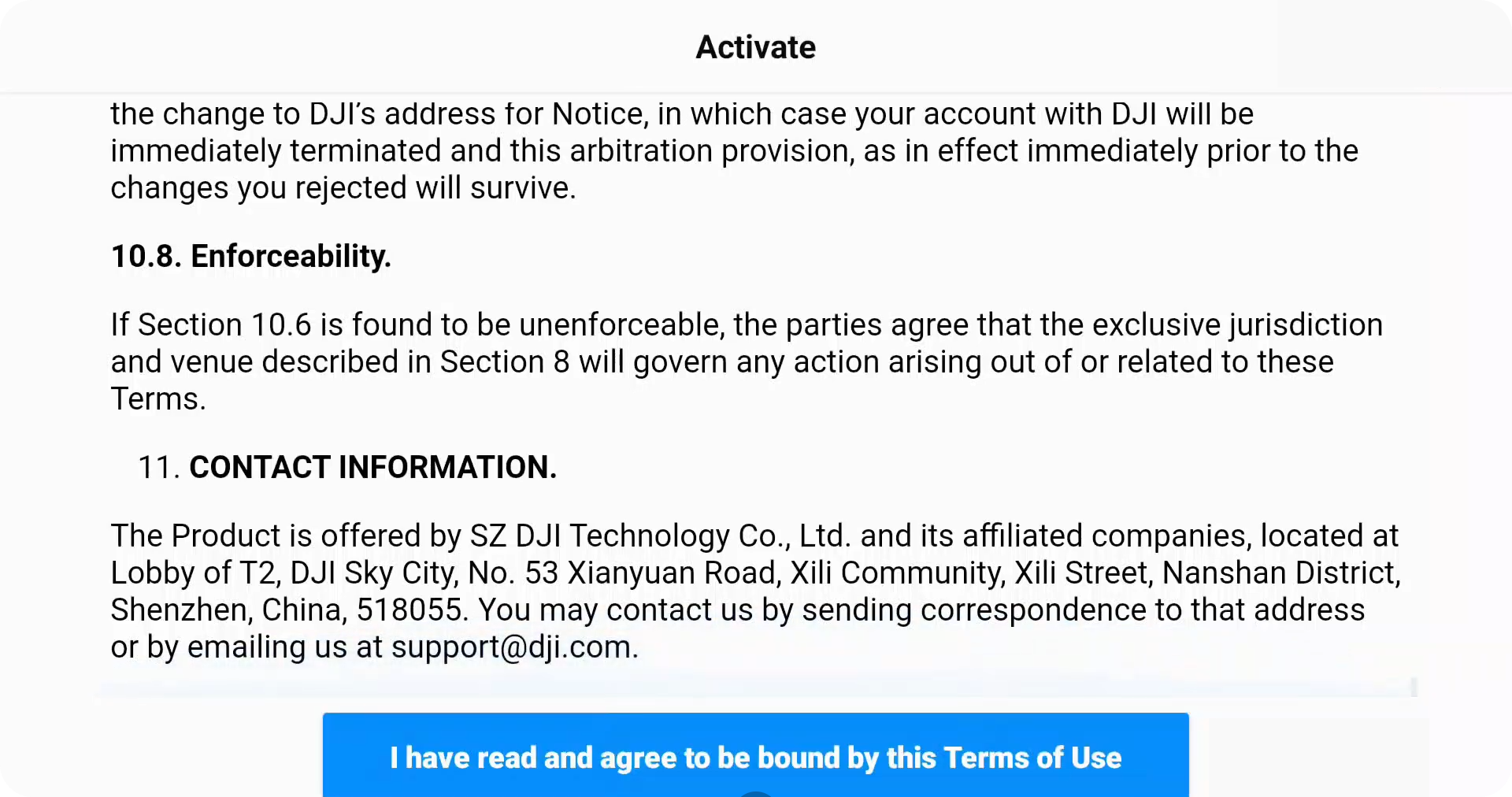
Read and confirm DJI's Term of Use. Then follow on-screen instructions.
After Confirm Your Account Information, the activation may take up to 2 mins. This is dependent on your internet connectivity. You will see Activation Success, then tap Complete.
Locate the **USB-C port** inside the Dock 2's electrical cabinet. Use a USB-C cable to connect the **DJI RC Plus Enterprise** to this port. The remote controller should automatically launch the DJI Pilot 2 application.
Read and confirm DJI's Term of Use. Then follow on-screen instructions.
After Confirm Your Account Information, the activation may take up to 2 mins. This is dependent on your internet connectivity. You will see Activation Success, then tap Complete.
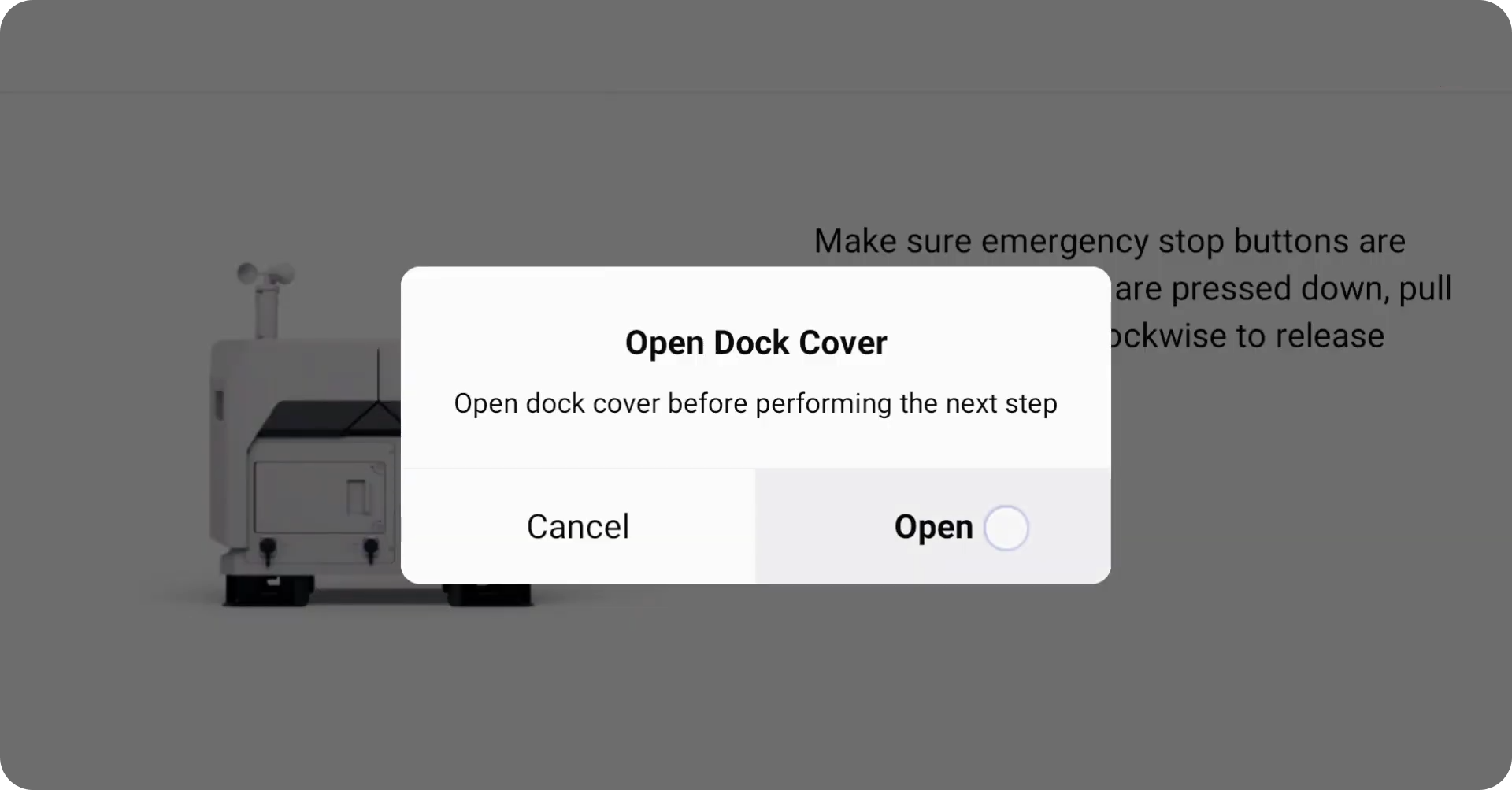
 Follow on-screen prompts on controller. When prompted, open dock cover button
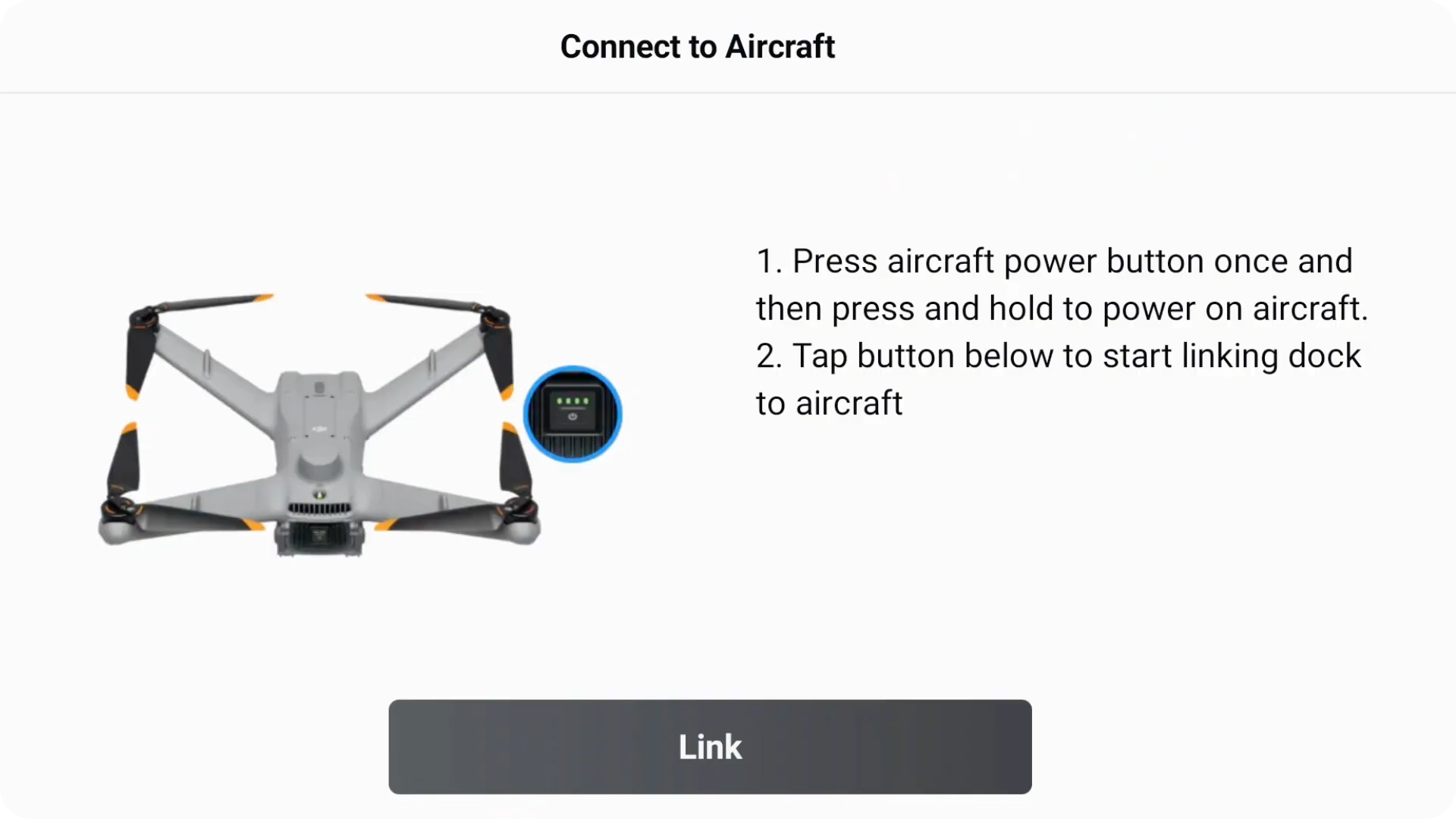
 Follow on-screen prompts on controller. To connect drone to dock,
**Press then press & hold** to turn drone on.
Once on, **Press and hold** to turn on connection mode.
In the DJI Enterprise app, check for successful confirmation. Then follow the on-screen.
Follow on-screen prompts on controller. To connect drone to dock,
**Press then press & hold** to turn drone on.
Once on, **Press and hold** to turn on connection mode.
In the DJI Enterprise app, check for successful confirmation. Then follow the on-screen.
 On the "Cloud Service Configuration" screen, the default will typically be set to "DJI FlightHub 2".
Tap the dropdown menu and select **"Third-Party Cloud Service"**.
A form for custom MQTT credentials will appear. This is where you will enter the details for the AlphaSight platform.
Fill in each field precisely as provided:
* **MQTT Gateway Address:** Your AlphaSight MQTT broker address
* **MQTT Account:** Your MQTT username
* **MQTT Password:** Your MQTT password
* **Binding code:** The unique binding code for this device
* **Org ID:** Your organization name (in plain text)
Close the dock. If not prompted, you may manually close it via Close Dock button under Debug section of the electrical cabinet. Then disconnect the **DJI RC Plus Enterprise** from the Dock 2's USB-C port.
**Remember to allow the drone to charge up before taking flight.**
On the "Cloud Service Configuration" screen, the default will typically be set to "DJI FlightHub 2".
Tap the dropdown menu and select **"Third-Party Cloud Service"**.
A form for custom MQTT credentials will appear. This is where you will enter the details for the AlphaSight platform.
Fill in each field precisely as provided:
* **MQTT Gateway Address:** Your AlphaSight MQTT broker address
* **MQTT Account:** Your MQTT username
* **MQTT Password:** Your MQTT password
* **Binding code:** The unique binding code for this device
* **Org ID:** Your organization name (in plain text)
Close the dock. If not prompted, you may manually close it via Close Dock button under Debug section of the electrical cabinet. Then disconnect the **DJI RC Plus Enterprise** from the Dock 2's USB-C port.
**Remember to allow the drone to charge up before taking flight.**